
BonusAgent.ai How To
A short walkthrough of every screen so you can get started quickly and jump straight to any feature you need.
New here? Start here
Pick the path that fits you. Both start with Onboarding so we can show offers that fit your state, paycheck, and preferences.
I am brand new to bank bonuses
I have done bonuses before
Onboarding → History → Bonuses or Auto-Schedule
Quick Start
The fastest path from signup to your first scheduled bonus.
- 1
Complete Onboarding with your state, pay, pay frequency, and notification preferences.
- 2
If you have earned bonuses before, add them in History.
- 3
Use Bonuses or Auto-Schedule to build your plan.
1. How BonusAgent.ai Works
BonusAgent.ai surfaces bank sign-up bonuses that fit your profile, helps you plan when to open and close accounts, and tracks your earnings.
This section walks through your ideal workflow inside the product. For privacy, ads, and trust, see Our Vision.
- 1Create an account — Sign up with your email or preferred provider.
- 2Complete onboarding — Tell us your state, take-home pay per paycheck, pay frequency, and whether you want notifications. We use this to show realistic offers and estimate how quickly you can meet direct-deposit requirements.
- 3Choose your starting point —
- No experience with bank bonuses? Start with the Bank Bonuses Explained guide, or jump to Bonuses to browse offers.
- You have already earned bonuses? Open History and add past bonuses (upload or manual). That unlocks better recommendations and timing. Then browse Bonuses, build your schedule, or use Auto-Schedule.
- 4Browse Bonuses — See offers ranked by difficulty, score, eligibility, and fit. Add what you want to your schedule.
- 5Use Schedule — Planned bonuses show sign-up timing, how long to leave money in the account, and when it is safe to close without losing the bonus, plus action buttons for each step.
- 6Track progress — The Dashboard shows what needs attention, active work, bonuses where you finished requirements but the bank has not paid yet, accounts ready to close, earnings charts, and your next planned item.
- 7Review results — History and Statistics show what you earned, when you might be eligible for similar offers again, and which banks worked best for you.
2. Getting Around The App
The top menu brings you to Bonuses, Schedule, History, and tools from any page.
When to use this
What to know
Primary destinations are one click away. Analytics, preferences, long-form guides, and account controls live behind More so the bar stays scannable.
On smaller screens, destinations usually stack or compact. Names and order match desktop so muscle memory still works.
- BonusAgent.ai
(logo) — Returns you to the home page from anywhere in the app.
- Dashboard
Your home base: earnings summaries, recommendations, time-sensitive actions, active bonuses, payouts in flight, planned bonuses, and ready-to-cancel accounts.
- Bonuses
Opens the ranked catalog so you can filter, compare, apply, add offers to your schedule, and open Ask AI when terms are available.
- Schedule
Opens a menu: choose Schedule for your timeline and lifecycle actions, or Auto-Schedule to generate a sequenced plan.
- History
Upload or edit past bonuses, export, and the Re-Eligibility Tracker. See Your Bonus History for why this matters.
- More
Opens a grouped menu. Tools holds analytics and account tuning; About holds company context; Guides holds educational articles (including this How To and deeper dives).
- Statistics
Click More, then under Tools choose Statistics. You land on charts, shareable metrics, heatmaps, leaderboards, and milestones driven by your history and schedule. You can also open /statistics directly if you prefer to bookmark the URL.
- Settings
Click More, then under Tools choose Settings. That page is where you review and change BonusAgent-specific preferences: profile and onboarding fields (state, income, pay frequency, experience), notification and contact options, balance and bonus-type preferences, subscription status when applicable, and related controls. Bookmark /settings if you like a direct link.
- Our Vision
Under More → About. This is separate from How BonusAgent.ai works above (that section is your workflow inside the product).
- Guides
Under More → Guides, links to available guides (including this How To), Security & Avoiding Scams, and Frequently Asked Questions.
- Pro Plus
When paid upgrades are available, opens Pricing so you can compare plans and checkout.
- Account
(user / circle icon) — Opens your Clerk account menu: sign-in methods, security, and sign out. Many things you might associate with "your profile" inside BonusAgent.ai—state, income, reminders, balance preferences—are edited on the Settings page (More → Tools → Settings), not only through the account portal.

3. Set Up Your Profile (Onboarding)
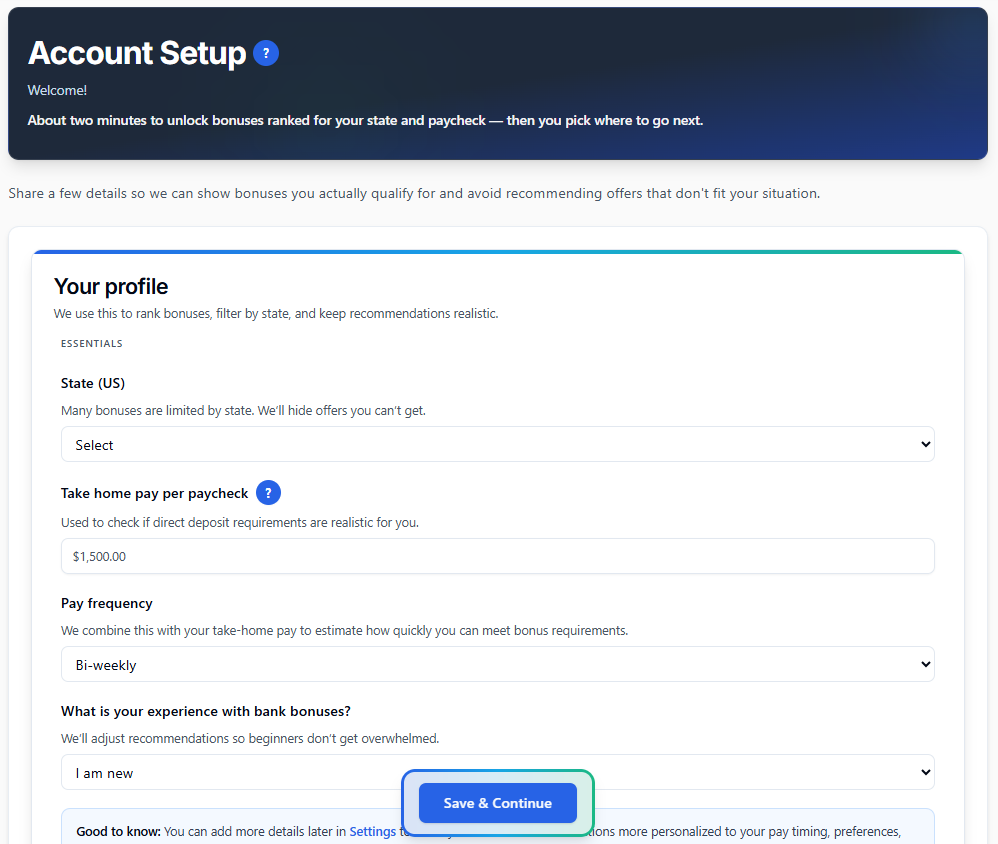
Onboarding tells us your state and income so we can prioritize offers that fit your state, paycheck, and preferences—and steer you away from obvious mismatches.
Why this matters
When to use this
What you will do here
- Enter your state, take-home pay per paycheck, and pay frequency.
- Optionally add advanced fields and email reminders.
- Save so we can filter, rank, schedule, and remind.
Important
Finish onboarding before browsing Bonuses or using Auto-Schedule. We need your state and income to show offers that fit your profile and avoid plans that do not fit you.
Step 1 - Location & Income
- State (US) - Many bonuses are limited by state. We hide offers that are not available where you live.
- Take home pay per paycheck - Your after-tax income per paycheck. We use this to estimate how many paychecks you need to meet direct-deposit requirements.
- Pay frequency - Weekly, bi-weekly, or monthly. Combined with pay amount, this drives time-to-complete estimates and ranking.
- Experience level - I am new, I have some experience, or I am an expert. We use this to tailor dashboard recommendations.
Final step - Contact & Reminders
Add your email (optional) and choose which reminders to receive: weekly summary, deadline alerts, payout reminders, and scheduled sign-up day reminders. Reminders are email-only today.
What we do with your data
- Filter bonuses by your state so you see offers available where you live.
- Estimate how quickly you can meet direct-deposit requirements based on your pay and frequency.
- Respect repeat rules using your bonus history.
- Rank difficulty and score based on income, effort, fees, balance demands, and timing.
- Show Keep funds until and Safe to close dates so you avoid fees and clawbacks.
- Send optional email reminders only if you opted in.
Next step: open Bonuses to compare offers that fit your state, paycheck, and preferences.
4. Your Dashboard
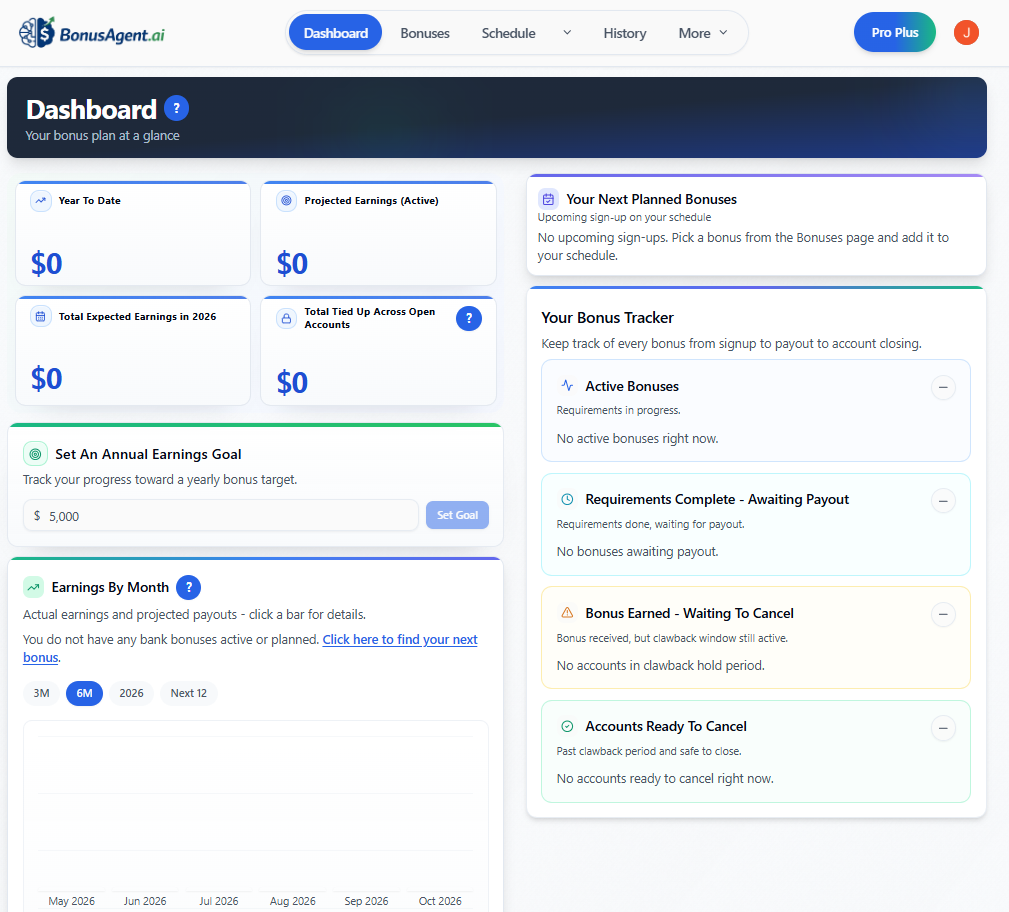
Your home base for earnings and tracking each bonus through its lifecycle.
When to use this
What you will do here
- Scan earnings summaries and what is due soon.
- See recommendations and lifecycle buckets for open bonuses.
- Open cards for full bonus details.
What to know
The sections below mirror the dashboard top-to-bottom: at-a-glance numbers first, then recommendations and trends, then your lifecycle tracker.
Summary cards
- Year To Date - Cash you have actually earned from bonuses this year.
- Projected Earnings (Active) - Expected payouts from active and awaiting-payout bonuses.
- Total Expected Earnings - Confirmed, projected, and planned earnings for the current year.
- Total Tied Up Across Open Accounts - Approximate money currently needed in open accounts to avoid fees or preserve bonus eligibility.
Annual Goal
Set a yearly earnings target. The card tracks year-to-date earnings against that goal and uses your projected and planned bonuses to estimate where you will land by year end.
Next Recommended Bonus
We show one top pick for you. The main card uses Apply Now to open the bank offer. If you open Why [Bank]?, that dialog uses Apply in the footer. Bonus Details opens the full terms-style modal. You can add this bonus to your schedule from the Bonuses page.
Top Crypto Recommendation
If a relevant crypto bonus is available, the dashboard may show a highlighted crypto offer. If no suitable crypto offer is available, this area may be empty or absent.
Earnings by month
Compare actual earnings from history against projected payouts from active and planned bonuses. 3M, 6M, and Next 12 are rolling forward windows from today; the current year pill shows a fixed Jan–Dec calendar view.
Click any bar to open a month-by-month breakdown with actual payouts you have logged plus projected payouts from active or planned bonuses, including quick links into each individual bonus.
If your history covers earlier calendar years, a Past years option on the chart appears next to the time-range pills so you can review previous years too.
Your Next Planned Bonuses
This card shows the next upcoming scheduled bonus, not the entire schedule. Use All Planned Bonuses to open the full planned list, or open the card to see full planned bonus details.
Your Bonus Tracker
Active, Awaiting Payout, Bonus Earned - Waiting to Cancel, and Accounts Ready To Cancel all live together in one card on the dashboard. Each section has a small − button on the right that collapses just that section so you can hide what you don't need. The four headings below describe what each section contains.
Active Bonuses
Bonuses you are currently working on before requirements are complete. Cards show payout timing and keep-until dates, and the row buttons open requirement progress or bonus details.
Requirements Complete - Awaiting Payout
Awaiting payout means you finished the bank's requirements, but the cash has not posted yet. Items sit in this blue bucket until then.
Use Mark Bonus Received once the cash arrives. Open Bonus Details for the full modal anytime.
Bonus Earned - Waiting to Cancel
After the bank pays, some offers still require you to keep the account open for a while. This amber card covers that window.
Safe to close is the earliest date closing is unlikely to cost you the bonus or trigger a bonus clawback. Example: if the bank requires the account stay open 90 days after opening, this date falls after that window ends.
Do not close early unless you accept that risk. Use Keeping Account if you plan to keep it open. Use Mark Closed Early only if you must close before the safe window.
When you are past clawback and safe to close, the account moves to Accounts Ready To Cancel. Use I Have Canceled after you close.
Accounts Ready To Cancel
Bonuses where you have received the cash and are past the clawback or safe-to-close period appear here. Use I Have Canceled when the account is closed, or Keeping Account if you want to keep it and hide it from the ready-to-cancel list.
5. Your Bonus History
Add bonuses you have already earned so recommendations stay realistic.
Why this matters
When to use this
What you will do here
- Upload a spreadsheet or enter bonuses manually.
- Review your list after we save the data.
- Export, track re-eligibility, or edit rows.
What to know
Order of operations: 1) Upload or add manually → 2) We parse and save → 3) View Your History refreshes with the new data.
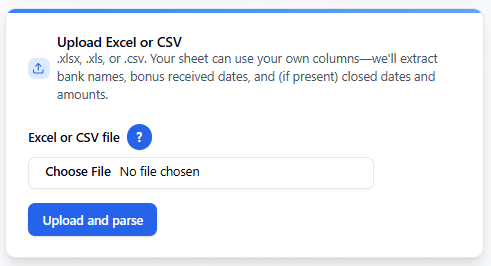
Upload Excel or CSV
In the Upload Excel or CSV card you can drag and drop or select a file. We accept .xlsx, .xls, or .csv. Your sheet can use your own column names; we extract bank names, bonus received dates, and, when present, account closed dates and bonus amounts.
Do not refresh while uploading
While we parse your file, leave the page alone. Refreshing or closing the tab mid-upload can interrupt processing and force you to upload again. Wait until the success message appears or View Your History updates.
If the list does not update
After uploading, if View Your History does not show new rows right away, refresh the page. Your data is saved; the list will show it after refresh.
Manual entry
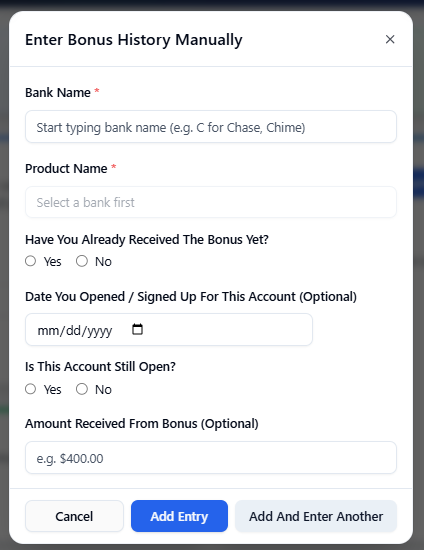
If you do not have a spreadsheet, use the Manual entry card. Click the button to open a form where you enter one bonus at a time:
- Bank name - Type and pick from suggestions if your bank appears.
- Product name - Optional checking product name; suggestions may appear after you pick a bank.
- Bonus amount - Dollar amount of the bonus.
- Received bonus? - Yes or No. If you have not received it yet, we treat it as in progress and can show a projected payout date if you provide the sign-up date.
- Bonus received date - When you got the cash, if received.
- Sign-up date for account - When you opened the account, which helps us compute expected-by dates.
- Account closed date - When you closed the account, if closed.
- Account still open? - Yes or No.
- Plan to keep account? - Use this when you are keeping it open by choice.
View Your History
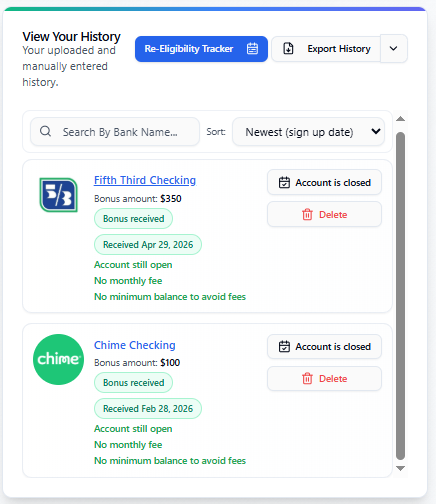
The View Your History card lists all uploaded and manually entered entries. Each row shows the bank, bonus amount, progress status, expected or received date, account open/closed status, fees, and minimum balance information when available.
Buttons on each row:
- Account is closed - Click when you have closed this account. We update the entry so it no longer appears open.
- Edit / View Details - Open a details popup to view or edit the entry.
- Delete - Remove this entry after confirmation.
Re-Eligibility Tracker
Use Re-Eligibility Tracker at the top of View Your History to open a modal showing when completed history entries line up with current catalog offers and when you may be eligible again.
Export History
At the top of the View Your History card, Export History downloads your full history as Excel (.xlsx), CSV, or PDF so you have a backup or can edit and re-upload later.
Next step: open Bonuses or build a plan with Auto-Schedule.
6. Find a Bonus
Browse and rank current offers, then add the ones you want to your schedule.
When to use this
What you will do here
- Filter and sort the list.
- Open Apply Now or Bonus Details.
- Add offers to your schedule.
- Use Ask AI when terms are available for that offer — see Bonus Details pop-up and Ask AI below.
What to know
The page is organized into filters/sort at the top, then a card grid below. Each card surfaces difficulty, score, and warnings so you can scan quickly.
Filters and sort
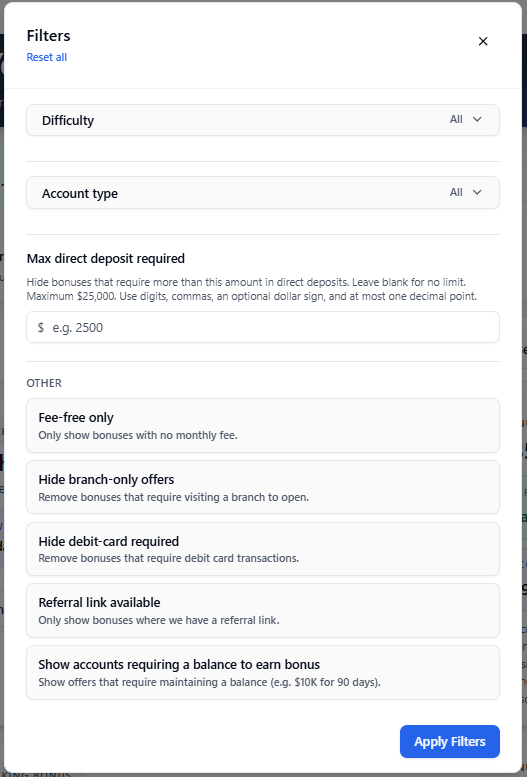
At the top you will see Filters with a count when any filters are active, plus a Sort dropdown. Click Filters to open a panel where you can:
- Difficulty - Show only Easy, Moderate, Hard, Very Hard, or Not feasible offers.
- Account type - Filter between Checking and Checking & Savings.
- Max direct deposit required - Hide bonuses that require more than your chosen direct-deposit cap.
- Other - Use Fee-free only, Hide branch-only offers, Hide debit-card required, Referral link available, and Show accounts requiring a balance to earn bonus.
Sort options include: Best bonuses (our score), Easiest bonuses, Fastest payout, Offer expiration date, Highest bonus amount, Lowest bonus amount, Lowest direct deposit required, Highest direct deposit required, Name A-Z, and Name Z-A.
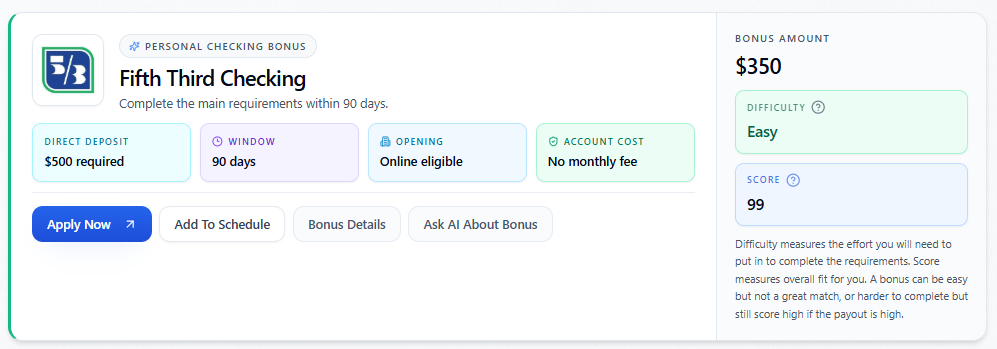
Each bonus card
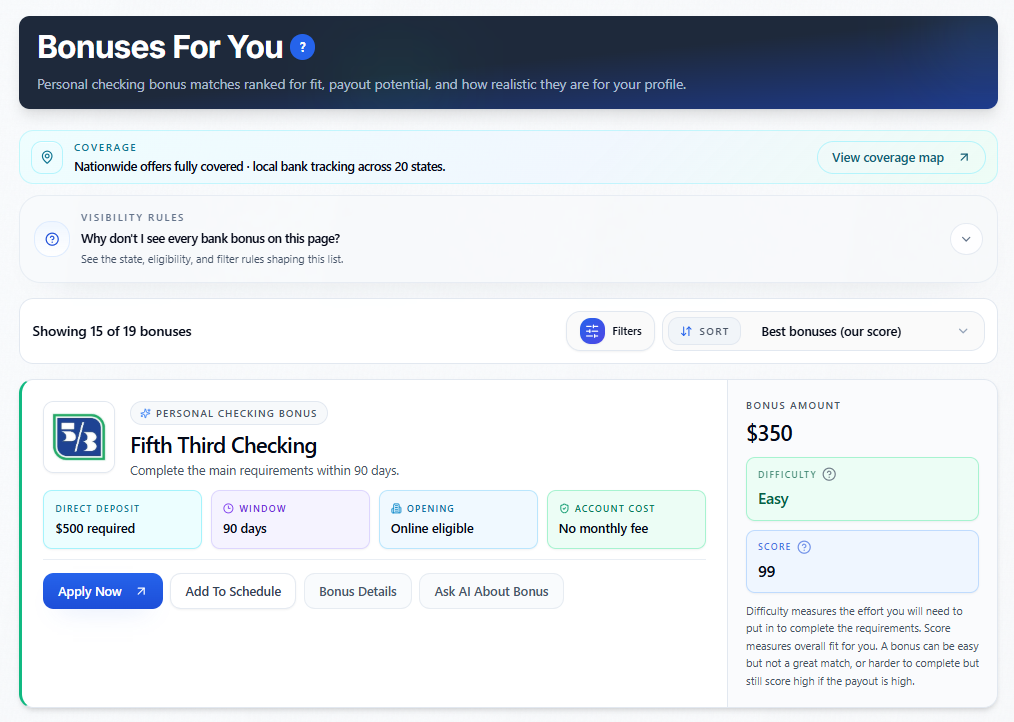
Every offer appears as a card with the bank logo, name, direct-deposit requirement, timing, account cost or balance-to-earn information, action buttons, and side metrics. New offers can show a New badge.
- Apply Now - Opens the bank application or referral link in a new tab.
- Add to schedule - Adds this bonus to your Schedule; you pick a sign-up-by date.
- Bonus Details - Opens a popup with requirements, payout timing, fees, eligibility, state availability, notes, and tier details.
- Ask AI About Bonus - On the card: opens an AI chat grounded in that bonus's official terms when they are available for the offer (the button stays hidden when there are none).
- Difficulty - Shows effort level using Easy, Moderate, Hard, Very Hard, or Not feasible.
- Score — A personalized 0 to 100 fit score for you (not the bank's marketing). We combine a few high-level things: how many dollars the bonus is and how fast you are likely to get paid; how heavy the requirements feel for your pay and schedule; fees, branch visits, and other "friction" in the offer; and, when a balance is required, how that lines up with the balance you told us you are comfortable tying up. Difficulty is mostly "how hard is the work"; Score is "how good a match is this offer for you overall."
Understanding badges and warnings
Some cards surface extra signals beyond Difficulty and Score. When our catalog knows that taking one offer could disqualify you from a stronger offer at another bank, you may see wording like Taking this offer blocks the better [Bank] bonus worth $X. Hover the badge for a fuller explanation. BonusAgent.ai highlights these conflicts when we have modeled them—it is still up to you to confirm anything critical with the bank's official terms before you apply.
Other badges can flag balance-related constraints (for example offers that require maintaining a balance). Those align with filters such as Show accounts requiring a balance to earn bonus.
If you see no bonuses
Complete Onboarding with state and take-home pay. If you have already done that, clear Filters and try Sort by Best bonuses.
Next step: track applied bonuses on your Schedule.
7. The Bonus Details Pop-Up
The Bonus Details pop-up shows requirements, payout timing, and warnings for one bonus.
Why this matters
When to use this
What to know
The same modal serves two roles — the catalog view shows the offer's structured terms, and the tracked view layers in your scheduled dates and lifecycle phase.
Catalog bonus details (Bonuses page, Next Recommended, Top Crypto)
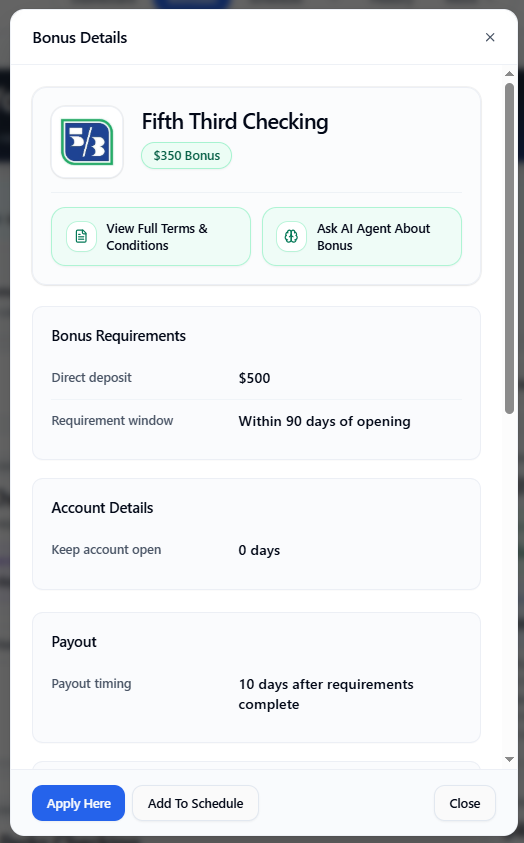
The title bar reads Bonus Details. You get the bank logo and bonus amount at the top, then structured sections built from our catalog:
- Bonus Requirements — Direct deposit amount and count, requirement window, balance-to-earn rules if any, debit-card or online-banking requirements, and a Bonus Tiers table when the offer is tiered (your matched tier is labeled).
- Account Details — Fees, minimum balance to avoid fees, how long to keep the account open, clawback window, opening deposit, and branch-only callouts when applicable.
- Payout — How long after you qualify or after account open the bank typically pays.
- Eligibility — Repeat rules, once-per-lifetime flags, prior-account restrictions, and offer end date.
- State Availability — Where the offer is offered.
- Notes and optional step-by-step video when we have them.
If your onboarding says you are not interested in balance-required offers—or the offer needs more tied-up balance than you allowed—we may show a clear warning banner so you do not miss the mismatch.
When terms are available for that offer, you also get View Full Terms & Conditions (opens a second modal with the disclaimer you can minimize, then the full text) and Ask AI Agent About Bonus (see Ask AI about a bonus). Otherwise those controls stay hidden.
Typical footer buttons (catalog)
- Apply Here — Opens the bank application or outbound apply link in a new tab.
- Add To Schedule — Appears when you are eligible to schedule and do not already have this bonus scheduled; opens the flow to pick a sign-up-by date (same control as on bonus cards).
- Close — Dismisses the modal.
Tracked bonus details (Dashboard, Schedule, earnings chart)
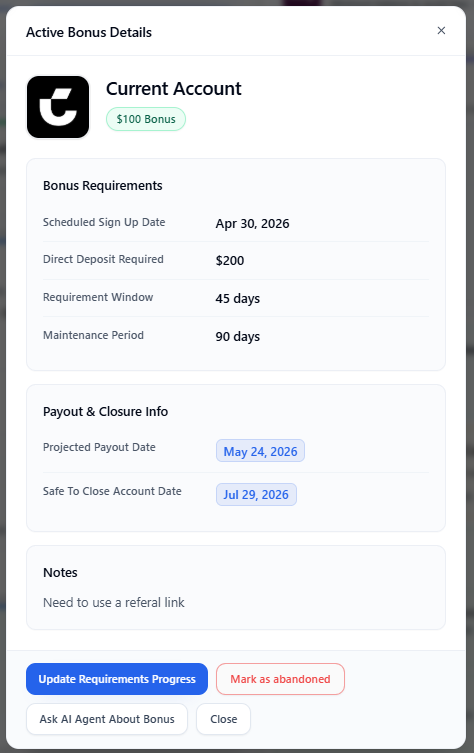
Once a bonus is on your calendar or dashboard, the modal is driven by your dates and snapshots (what you scheduled, when you opened the account, marks you made on requirements, payout expectations). The title changes so you always know which phase you are in—for example Active Bonus Details, Awaiting Payout Bonus Details, Your Next Planned Bonus Details, Bonus Earned — Waiting to Cancel, or Bonus Details — [month] Earnings when you drill in from the earnings chart breakdown.
Expect rows such as scheduled or actual sign-up timing and direct deposit requirement as it applies to your tier. Keep funds until is the date to leave enough money in the account so you do not lose the bonus or trigger fees. Safe to close is the earliest date closing is unlikely to claw back fees or the bonus (see also Your Dashboard above).
You also see payout timing, clawback-related dates when applicable, fees, minimum balance, and your notes. Content matches what matters right now — planned items emphasize applying and removing from the schedule; active items emphasize requirement progress; awaiting payout emphasizes when the bank paid you.
For planned catalog-linked items when terms are available for that offer, large buttons under the header often duplicate View Full Terms & Conditions and Ask AI Agent About Bonus for quick access before you apply.
Buttons you may see (tracked—depends on phase)
- Update Requirements Progress — On active bonuses matched to our catalog, after you have marked the account opened / approved. Opens the direct-deposit completion flow so you can record progress toward the requirement.
- Apply Now — On planned bonuses you have not opened yet; opens the outbound apply/referral link.
- View Your Schedule — Quick jump to your Schedule (common on planned details and when opened from certain earnings breakdown views).
- Remove Bonus From Schedule — Only while the bonus is still planned and not yet opened; confirms removal (you can add again later from Bonuses).
- Tried – No Payout — Use when you opened an account but decide not to pursue it; availability depends on lifecycle rules.
- Ask AI Agent About Bonus — Same scoped chat as the catalog modal when the offer is catalog-linked and terms are available (for planned items with terms, it may appear in the header utility row instead of the footer).
- Close — Always available.
Manually entered banks that are not matched to our catalog may hide direct-deposit tracking and some AI features; the modal still shows what we can infer from your entries.
Opening Update Requirements Progress can chain into the same Direct Deposit Completion dialog described in Schedule—including marking requirements complete or not pursuing the bonus when that path is offered.
8. Plan Your Bonuses (Schedule)
Your Schedule is the calendar of bonuses you planned — from sign-up day through when it is safe to close.
Why this matters
When to use this
What you will do here
- See planned bonuses and key dates.
- Open Bonus Details from each card.
- Move each bonus through apply → requirements → payout → close or keep.
- Remove a planned item if you change your mind.
What to know
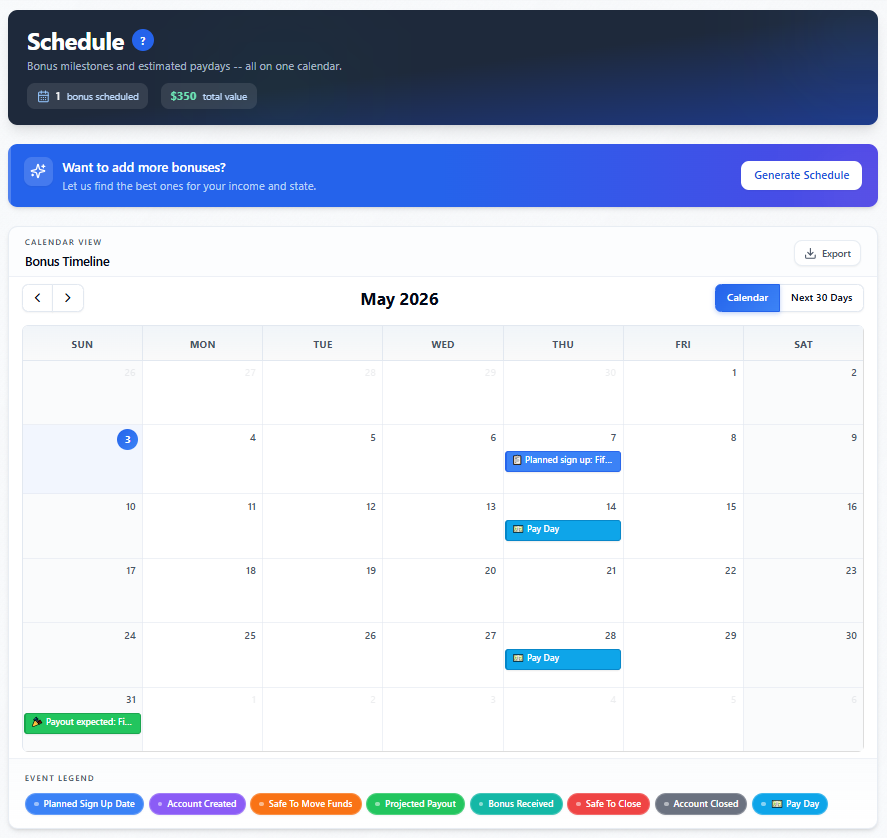
The Schedule pairs a calendar view with a list so you can see both the timing and the action each card needs next.
Schedule page and export
On the Schedule page, use the Export button (download icon) to open Export Schedule. From there you can download your plan as a PDF, a calendar file (.ics) for Apple Calendar, Google Calendar, Outlook, and similar apps, or a CSV spreadsheet—pick what fits how you like to stay organized.
What you see
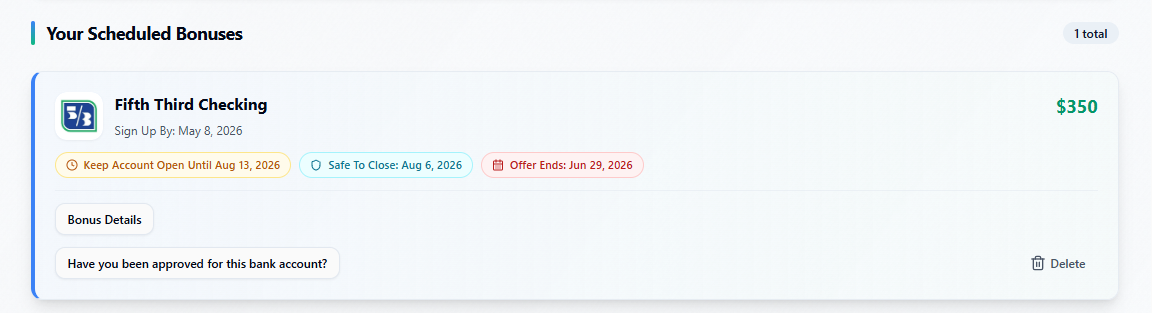
When you have scheduled bonuses, you see a calendar and a list. Each item shows the bank, bonus amount, sign-up timing, Keep funds until, Safe to close, and urgent offer-end timing when it applies.
Actions on each card
- Have you been approved for this bank account? - Use this once the account is opened or approved. The card then shows Account Approved.
- Update Direct Deposit Progress - Opens the direct-deposit completion dialog for catalog-matched bonuses.
- Mark Bonus Received - Use this after the bank pays the bonus.
- Remove or Delete - Remove the card from your schedule depending on its lifecycle state.
- Remove From Schedule - Available after a bonus is received if you want it off the schedule list.
- Tried – No Payout - Use this when you opened an account but decide not to pursue it.
Direct Deposit Completion dialog
When you click Update Direct Deposit Progress, BonusAgent.ai asks whether you completed the required direct deposits. Choose Yes to confirm completion immediately, or Not yet to enter when you plan to complete the requirements. You can also enter a completion date if you already finished, and you can mark the bonus abandoned if you are no longer pursuing it.
Next step: check progress on your Dashboard.
9. Let Us Build a Plan (Auto-Schedule)
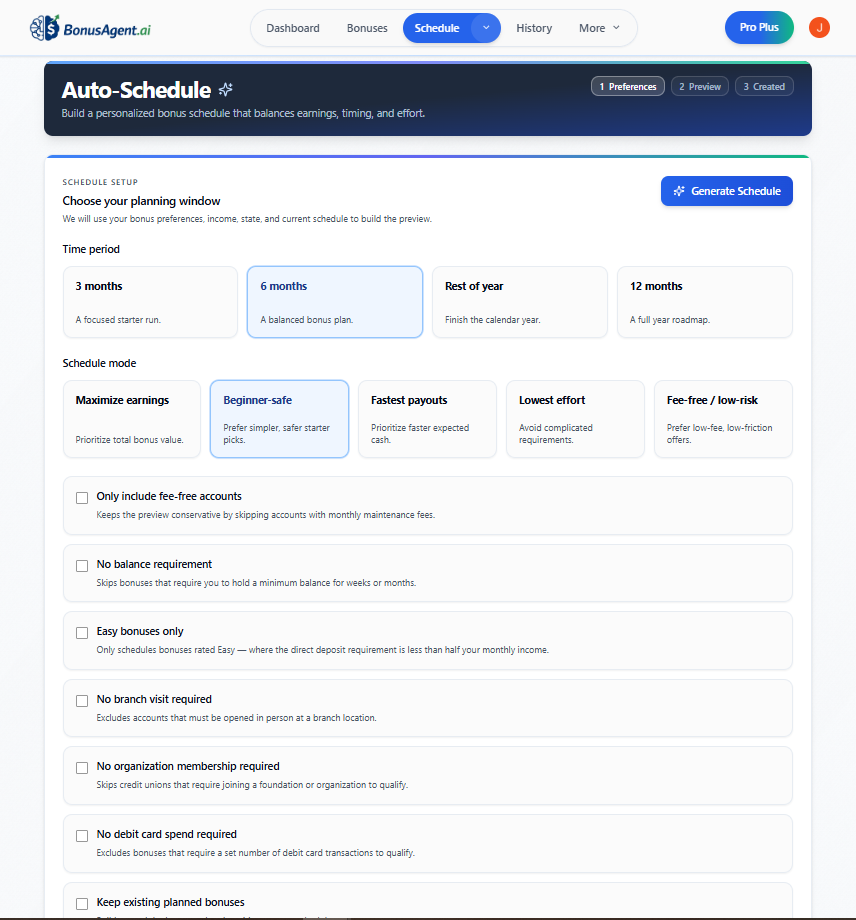
Pick a time window and preferences, and we will suggest a sequence of bonuses for you to confirm before anything is added to your schedule.
When to use this
What to know
The engine uses your onboarding profile (state, income, pay frequency), what is already on your calendar, and the choices below. If state or income is missing, the wizard sends you back to Onboarding.
Three steps
The screen is a three-step flow: Preferences (pick window, strategy, and filters, then generate), Preview (review and tweak the lineup), and Created (confirmation after you commit). Step indicators at the top show where you are.
Planning window
Choose how far ahead to plan—each option includes a short description on the page:
- 3 months — A focused starter run.
- 6 months — A balanced bonus plan (default).
- Rest of year — From today through the end of the calendar year.
- 12 months — A full-year roadmap.
Schedule strategy
Pick how the engine should rank and order offers before it respects timing and overlap rules:
- Maximize earnings — Prioritize total bonus value.
- Beginner-safe — Prefer simpler, safer starter picks (default).
- Fastest payouts — Prioritize faster expected cash.
- Lowest effort — Avoid the most complicated requirements.
- Fee-free / low-risk — Prefer low-fee, low-friction offers.
Optional filters
Toggle any combination to narrow the pool before you generate. These work together with your onboarding profile (state, income, balance preferences, and so on):
- Only include fee-free accounts — Skips accounts with a monthly maintenance fee so the preview stays conservative on fees.
- No balance requirement — Skips bonuses that require holding a minimum balance for weeks or months to qualify.
- Easy bonuses only — Only schedules offers rated Easy (in practice, where the direct-deposit bar is under half your monthly income).
- No branch visit required — Drops offers that must be opened in person at a branch.
- No organization membership required — Skips credit unions that require joining a foundation or similar organization to qualify.
- No debit card spend required — Excludes bonuses that need a set number of debit card transactions.
- Keep existing planned bonuses — When this option appears (you already have future planned items), turn it on to build the new preview around what is already on your schedule.
Click Generate Schedule (top of the step or the duplicate on small screens) to build the preview. If you remove offers from the preview and regenerate, they stay excluded until you change the selection.
Preview and refine
The preview lists each offer with a suggested sign-up week, estimated payout, safe-to-close timing, direct-deposit requirement, difficulty, score, and notes.
Summary pills show estimated earnings for the plan (and sometimes net earnings when fees differ from the headline total).
- Remove rows you do not want.
- Use undo or regenerate to adjust the lineup.
- Stay on Preview until you are satisfied.
Confirming the plan
When the lineup looks right, click Confirm & Add to My Schedule. Those bonuses are saved to your Schedule and behave like items you added manually—you can still edit lifecycle state, abandon, or remove them from your schedule afterward.
Next step: check progress on your Dashboard.
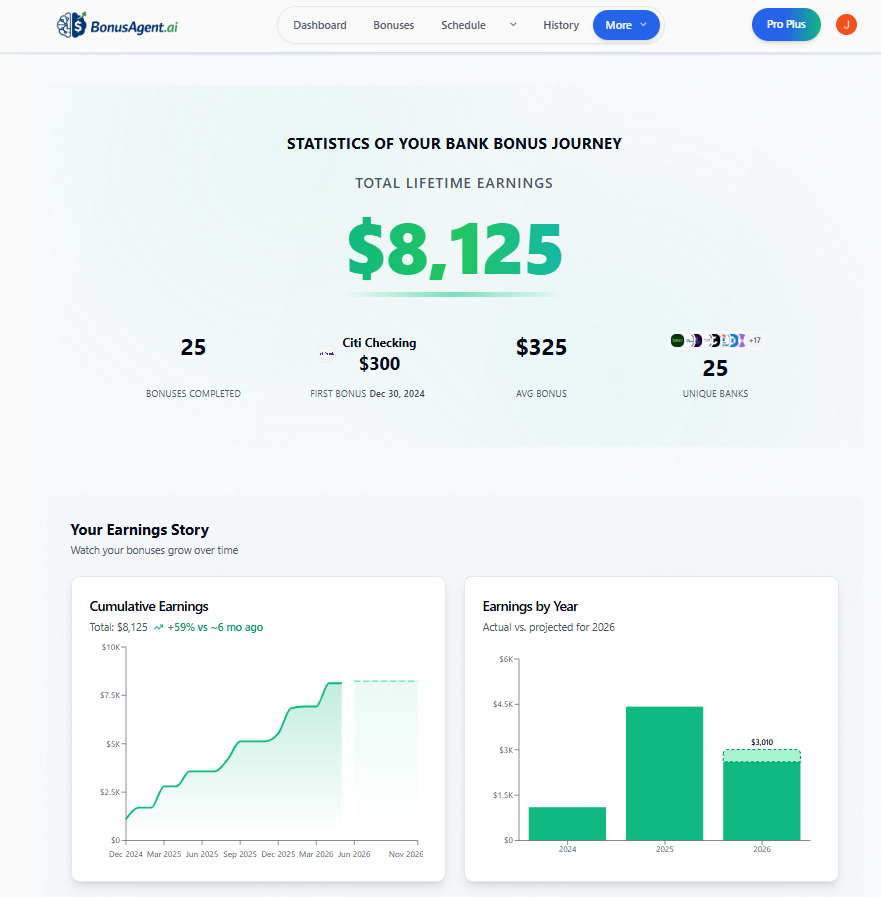
10. Your Stats
A higher-level view of how you are doing across history and your schedule.
When to use this
What you will see here
- Charts and trends - Cumulative earnings, yearly charts, and story-style progress views based on history and planned bonuses.
- Shareable metrics - High-level numbers that summarize your bonus journey.
- Heatmap - Month-by-month earning activity so you can spot busy and quiet periods.
- Bank leaderboard - Which banks have contributed the most to your earnings and activity.
- Personal records - Milestones such as standout earnings moments and the hardest bonus conquered.
- Account overview - Counts and status summaries across your bonus accounts.
- Keeper accounts - Accounts you chose to keep instead of closing.
Statistics are based on your bonus history and schedule, so the page becomes more useful as you keep History and Schedule up to date.
11. Ask AI About a Bonus
Use Ask AI when you want plain-language help understanding one specific bonus — requirements, fees, timing, or eligibility — without reading every line of fine print alone.
When to use this
What to know
The assistant stays scoped to the official terms available for that bonus (plus a small, sanitized summary of your BonusAgent.ai context such as disqualification hints when relevant). If you ask to compare this offer to another bank's bonus by name and we can load that second offer's terms, you may get a tight comparison. That stays limited to documented offers — not open-ended advice across the whole market. Off-topic questions get a short refusal.
Conversations are not saved as a permanent inbox. Your browser may briefly restore the last messages for the same bonus for about fifteen minutes via session storage. The server tracks usage separately for fairness and cost.
Usage limits may apply.
When a reply appears, you can use the listen/play control to hear it where enabled.
Not a substitute for the bank
Ask AI summarizes the official terms we have on file for an offer and structured catalog data. Banks change offers; always verify payout rules, deadlines, and eligibility on the institution's site before you apply or move money.
12. More Guides
Beyond this walkthrough, these articles go deeper on tactics, terminology, and safety. Under More → Guides you will find the same destinations: available guides (including this BonusAgent.ai How To) and Frequently Asked Questions.
- How To Change Your Direct Deposit
Step-by-step paths for common payroll portals—Workday, ADP, Paychex, Gusto, and more—so you can aim deposits at the account that matches your bonus plan.
- Bank Bonuses Explained
How requirements, fees, timing, and bonus math usually work so the rest of BonusAgent.ai makes more sense.
- Credit Card Bonuses Explained
How card welcome offers differ from the checking workflow BonusAgent.ai optimizes for.
- Security & Avoiding Scams
A deeper walkthrough on red flags, safer habits, and what to do if something feels off.
- Frequently Asked Questions
Short answers on safety, eligibility, direct deposits, and how BonusAgent.ai fits your plan—often the fastest place to start.